

To publish on The Stacks, we need to do the following steps:
Import the document
Describe the contributors
Pick a community that will be the home of the publication
Pick a license
Release the publication
This quickstart will walk you through these steps.
Step 1: Import the document
For the quickstart, we will import the Google Doc pub template. The template is a Google Doc that demonstrates use of some common styling and content directive options and can be used as the starting point for a publication.
Click Create a pub in the navigation bar, paste the link to the template into the field, and click Import.
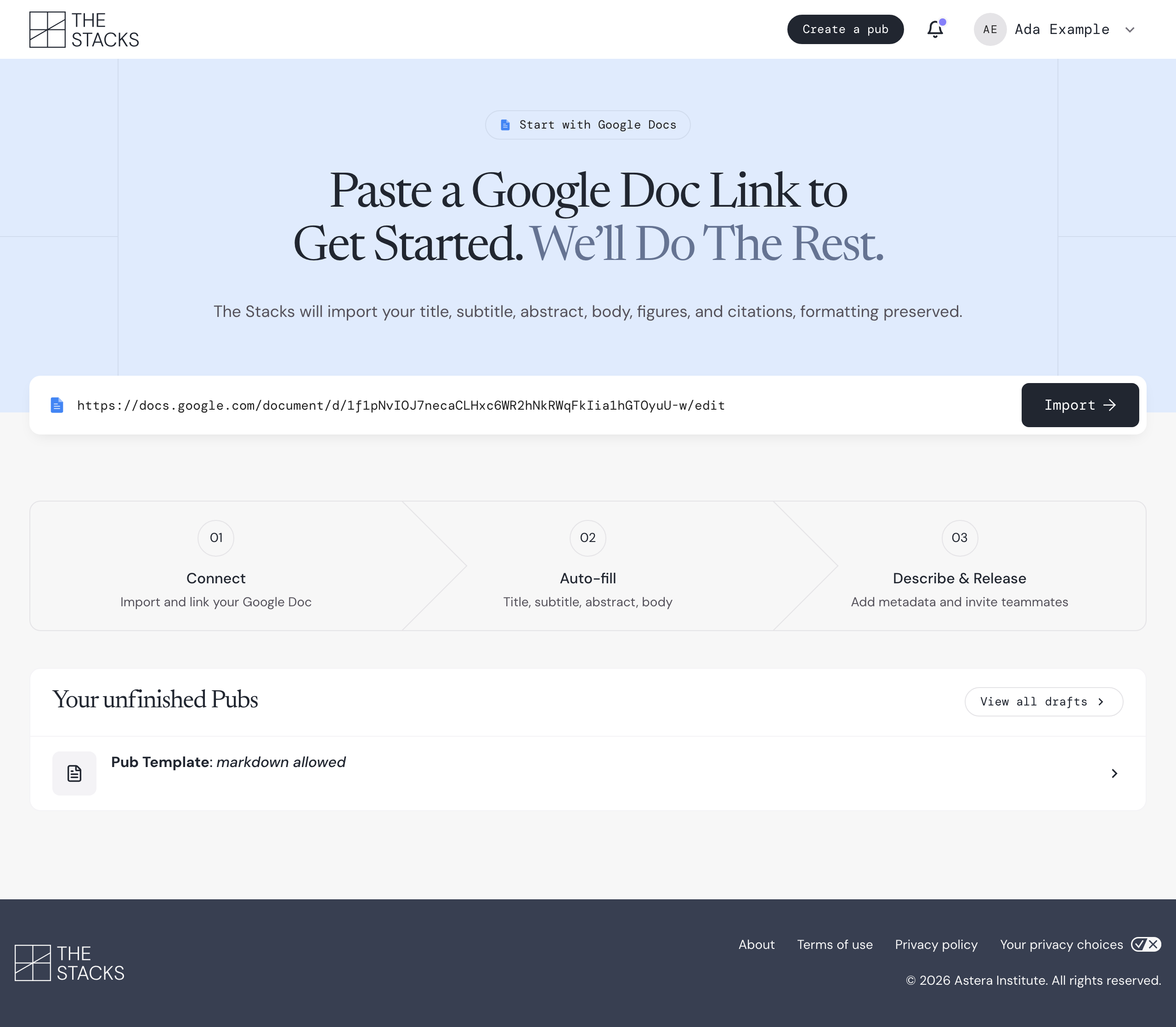
Figure 1:Paste the link to the Google Doc and click Import.
When The Stacks imports a Google Doc, it looks for the first paragraph using the “Title” paragraph style (this becomes the title) and directives specifying the subtitle, and abstract. If these are found, they will be removed from the main text and used to populate those fields. The rest of the content goes into the body (including figures and citations in the document).
After import, you will be on a form for the draft. You can close the draft at any time and continue working on it later. Unfinished drafts are shown in the Your unfinished Pubs section of the import page.
The draft page lets you iterate on your publication and configure how it will appear in The Stacks. Your changes save automatically as you go. The Details section is where you provide metadata that The Stacks needs to publish a publication.
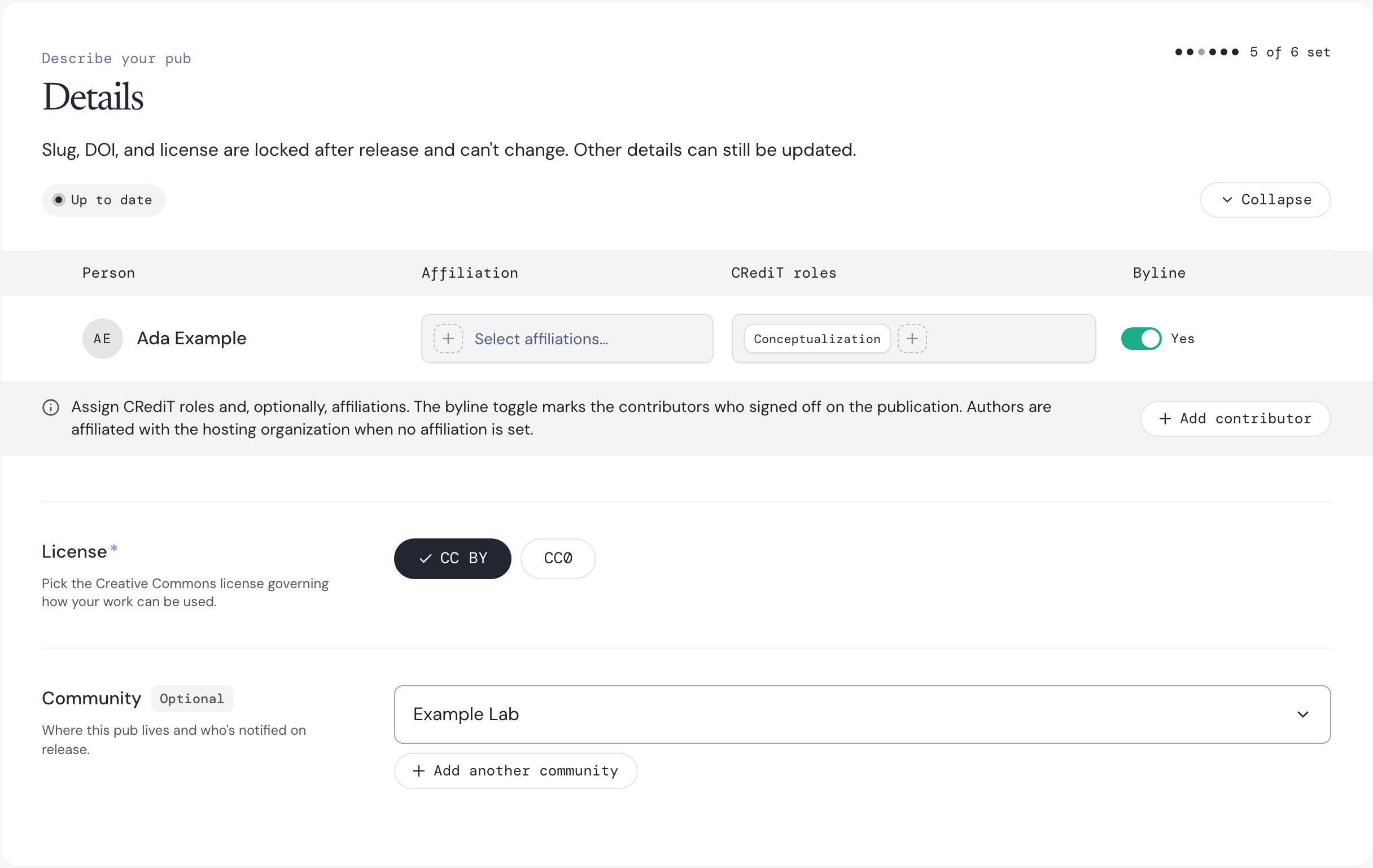
Figure 2:The contributors, license and community in the Details section of the draft.
Step 2: Add the contributors
Click Add contributor and search for each person who contributed to the publication. For each contributor, pick one or more CRediT roles that describe their contribution to the work.
Contributors are by default affiliated with the organization of the community for the publication (more on communities below). If the default is not appropriate, you can set a different affiliation for any contributor. Multiple affiliations are allowed.
Turn on Byline for the contributors who signed off on the publication. Byline authors appear in the citation; the other contributors are credited but not listed as authors. See Contributors and byline authors for more on the difference.

Figure 3:Each contributor has an affiliation, CRediT roles, and a Byline toggle.
Step 3: Pick a community
The community is where the publication lives on The Stacks, and its members are notified when you release it. Pick one from the Community menu. If the work belongs to more than one community, click Add another community.

Figure 4:Pick the community that will be the home of the publication.
Step 4: Pick a license
Pick the Creative Commons license that governs how others can use your work:
CC BY lets others share and adapt your work as long as they credit you. It is the most common choice for research.
CC0 waives all copyright, so anyone can use your work for any purpose. It is best suited to raw data.

Figure 5:Pick CC BY or CC0.
Step 5: Release the publication
When everything the publication needs is filled in, the Release publication… button at the bottom of the draft becomes available. If something is still missing, a list above the button tells you what to fix.

Figure 6:Click Release publication… when you are ready.
Click Release publication…. Confirm that all byline authors have consented to the release, optionally add a release note, and click Release publication.
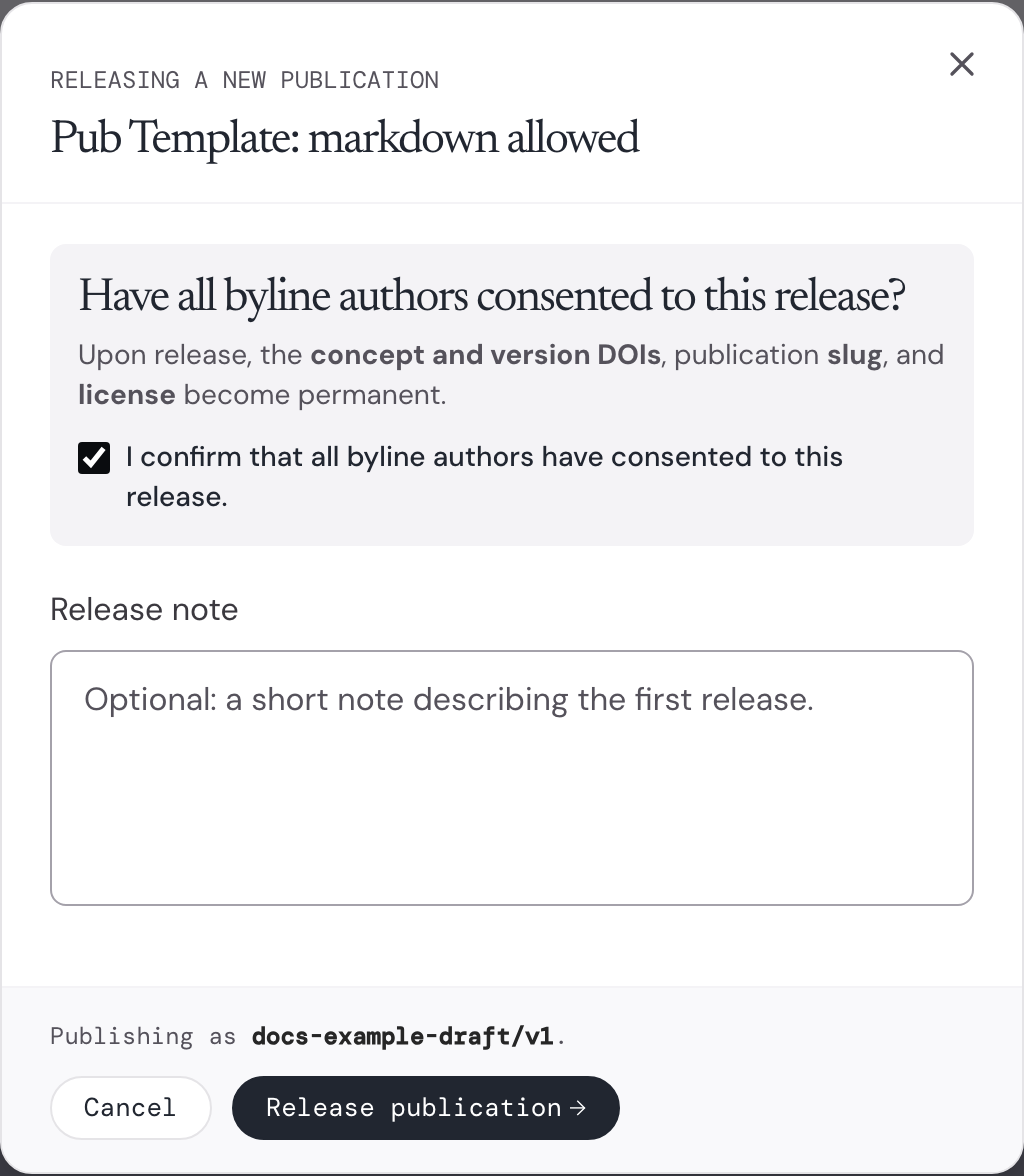
Figure 7:Confirm that the byline authors consent, then release the publication.
Your publication is now live on The Stacks. To change it later, release a new version; see Versions and DOIs.